
3D printing
Building a 3D Printed Pit Droid, Part 3: Printing the Parts
What to print first, which settings give strong parts without wasting filament, which parts need supports, and exactly which files you need for your level. With a log for what I really used.
- 3D printing
- 9 min read
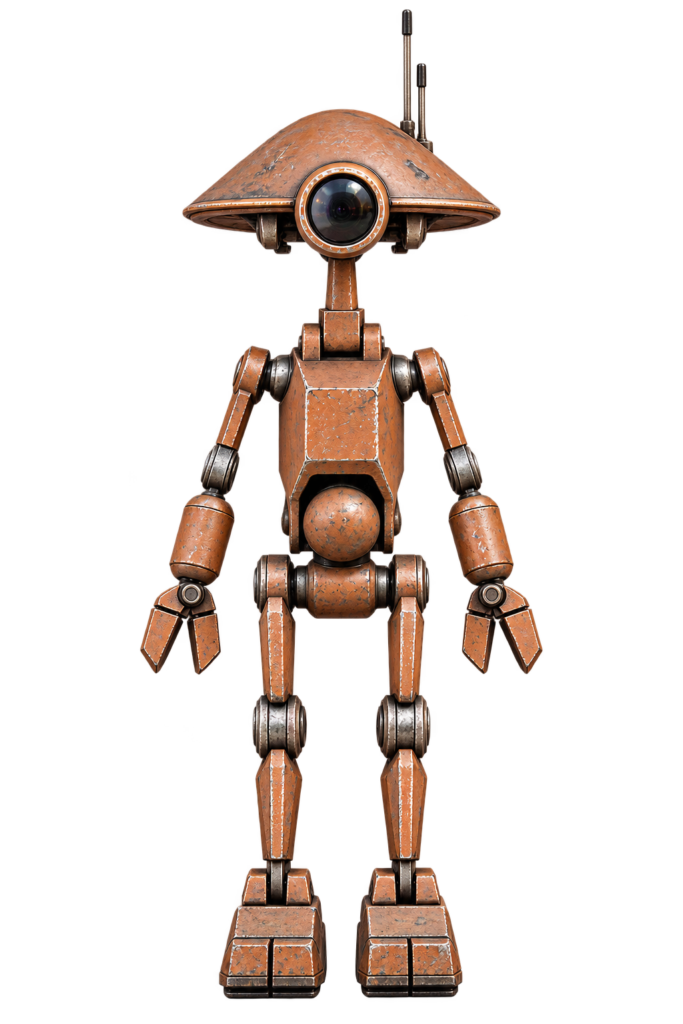
The hardware is ordered, so now the printer gets to work. A life-size droid means a lot of printing, so this part is about doing it in a smart order, with settings that give strong parts without wasting filament.
By the end you know what to print first, which settings to use, which parts need supports, and exactly which files you need for your level.
About the settings in this part
The recommendations come from the designers’ info sheets (Droid Division’s printing tips and Chris Osborne’s animatronic sheets). I’m using them as my starting point. At the end of this part is a log where I’ll write down what I really used and what it cost. Always check your own info sheets, because the files get updated.
As in Part 1: I don’t publish STL files. Buy them from droiddivision.com.
Before You Press Print
Print the Head First
Droid Division recommends starting with the head. You get something cool on your shelf right away, and that keeps you motivated for the rest. After that, build from the feet up, so the droid grows in front of you instead of ending up as a pile of boxes.
Check the Bed Size
- The main files are for large printers (CR-10 or Ender 5 Plus class).
- Most parts also come in split versions for smaller beds. Set your bed to a maximum of 220 x 220 mm if you have trouble.
- A Bambu Lab printer with a 256 x 256 x 256 mm bed is not really a small printer. Try the normal files first, most of those fit. Only use the smaller-printer versions if they don’t.
- If a part is only just too big, reduce the brim to 2 to 3 mm or turn the brim and skirt off.
Left and Right
- Files named “Right” must be mirrored in your slicer for the left side.
- Files named “L or R” need no mirroring.
- Mirror the X axis first. As long as the same face is on the bed after mirroring, you’re good.
- Most right-hand parts have a stamped “R”. The left-hand parts get a reversed R, so you can check.
Grouped Files
Sometimes several parts are grouped in one file so they print on the same bed. If you only want one, ungroup the file in a free tool such as 3D Builder (open, select all, ungroup, delete what you don’t want, save as a new STL).
Keep the Saved Orientation
The files are saved in the orientation the designer recommends, and he chooses strength over looks where needed. The best example is the elbow “lollipop”: printed standing up it breaks. If a part breaks, reprint it in the saved orientation before blaming the file.
Settings That Work
The designer talks about wall thickness in millimetres, not the number of walls, because that depends on your nozzle.
| Part type | Walls | Infill | Notes |
|---|---|---|---|
| Large, light parts: head, torso, backpack | 1.2 mm (the minimum for the whole droid) | Below 8%, as low as 5% for a head | Check your slicer preview that low infill still supports internal overhangs |
| Medium parts: legs, bigger arm parts | 1.2 to 1.6 mm | About 5 to 7% | Example from the designer: legs at 1.6 mm walls and 5 to 6% infill with a 0.8 mm nozzle, bigger arm parts at 1.2 mm and 6 to 7% with a 0.4 mm nozzle |
| Strong or small parts: feet, small joints, thin arm parts | 1.6 mm | 15 to 20% | These carry load or are too small for weight to matter |
| Elbow lollipops | 1.6 mm | Per your slicer, printed in the saved orientation | Very strong when printed correctly |
| Printable rod ends (animatronic linkage) | 4 walls | 30% | Layer height 0.2 mm at most, Z seam random |
Nozzle
Big, less detailed parts print well with a 0.8 mm nozzle in roughly half the time of a 0.4 mm. If you have two printers, put the 0.8 mm nozzle on the bigger one. Detailed parts and small parts are better on a 0.4 mm nozzle.
Supports
- Most parts need none. The info sheet says when they do.
- Set the overhang angle high in Cura (about 75 to 80°). In PrusaSlicer or Bambu Studio the angle works from a different face, so set it low (about 10 to 15°). Always check the slicer preview.
- Most holes that bridge back together do not need support. A wide nozzle makes the shelf wider and prints neater.
- Support density of about 8 to 10% makes the supports easier to remove.
- In Cura, with a 0.8 mm nozzle, you can try a support line width of 0.4 to 0.6 mm. The support looks under-extruded but works and is easier to remove. Test it on a small part first.
- Some animatronic parts have odd-shaped holes on purpose, so they print without support. Don’t “fix” those.
Bed Adhesion
Lifting parts and under-extrusion are the two most common 3D printing problems.
- For lifting: the designer swears by 3DLac spray. It doesn’t leave glue residue on the bed, and with it you can forget rafts. A small brim of 2 to 3 mm still helps.
- For random under-extrusion: if nothing outside the printer blocks the filament but some areas print well and others terribly, check that the Bowden tube is pushed hard against the nozzle. When you fit a new nozzle: screw it all the way in, back off half a turn, push the tube all the way in, clip it, and tighten the nozzle the remaining half turn.
Dowels
- Print the 5.7 x 17 mm dowels lying down for strength. They need no supports.
- No brim needed if you use 3DLac, they won’t come loose.
- How many you need depends on how many split parts you print, so print a batch and see.
- If dowels are still too tight after drilling out the holes with a 6 mm bit, print them at 98 or 99% scale.
Which Parts Do You Print?
Print only the version you need, there are alternatives for many parts. A droid has just two feet.
Standard Droid (Every Level)
| Body part | Folder | Which version | Supports |
|---|---|---|---|
| Head | Head | Whole head, or 2 parts (Bambu or 300 mm beds), or 3 parts (Ender 3 size). Plus the dome, head details and the eye parts | The dome prints flat, no supports needed, though supports can avoid stringing inside |
| Neck | Neck | Upright print (more detail) or stronger print (flat, less detail on the back). Neck top flat | Neck: none. Neck top: yes, always |
| Torso | Torso | Whole or split. Plus the door | Whole and the low split part: yes. Upper split parts: probably not, a couple of spots may string |
| Belly (middle) | Middle (Belly) | Whole or split front and back | Whole: yes. Split back: yes. Split front: no |
| Hips | Hips | Whole or split | Whole: yes. Split: no |
| Legs | Legs | Whole or split shin and thigh (right, mirror for left) | Whole: print lying down for strength, with supports. Split: no |
| Feet | Feet | One-part foot, or the 2-part foot with a removable toe. Optional feet clamps | Check the info sheet |
| Arms | Arms | Forearm, forearm detail, outer elbow, shoulder connect, shoulder ring, upper arm, elbow lollipops | Forearms: no. Upper arm: upright may need none, flat needs supports |
| Hands | Hands | Wrist with fixed thumb (stronger) or separate thumb, plus fingers | All hand parts need supports except the lone wrist |
| Stand | PD-23 Stand | Optional, see Part 5 | Check the stand info sheet |
Tips per part:
- Thighs: make sure all parts on one leg have the same handedness. The three small dots on the thigh are always at the back.
- Flat upper arm: if you print it lying down, mirror one so the support ends up on the back of both.
- Elbow lollipops: print in one of the saved orientations. The strong flat version prints in two parts and is glued on 10 mm filament dowels.
- Wrist: if it’s too tight in the forearm, there is a slightly larger or tighter version in the files for when the normal one is too loose.
- Lens: there is a printable lens, but most builders (including the designer) use a found part. See Part 2.
Animatronic Upgrades
| Upgrade | Folder | Parts to print |
|---|---|---|
| Head (Level 1) | Animatronic PD23 Head | Animatronic head pivot, animatronic neck and neck top (instead of the normal ones), servo bracket and servo arm, optionally the servo gears and printable rod ends. Print all the normal head files too |
| Arms (Level 2) | Animatronic PD23 Arm Shoulder | Per arm: arm lever, bearing carrier, shoulder sleeve. Check the shoulder sheet for the clamping hub file |
| Waist (Level 3) | Animatronic PD23 Hip Swivel | Belly main, front and back, hip adaptor (or the new hip front and rear), servo clamp, shaft adaptor |
| Backpack (optional) | Animatronic PD23 BackPack | Backpack, adaptor and door (there are alternative doors) |
Important for the animatronic parts:
- Head: you need the normal head files and the animatronic pivot, neck and neck top. Don’t print the normal neck as well. You only need the animatronic one.
- Waist: the animatronic belly replaces the normal one. If you haven’t printed the normal belly yet, print this one. If you already glued the belly to the torso, you’ll have to reprint. If you use your original hip, you only need to print the adaptor tube, not the new hip parts.
- Backpack: prints without support, unless you turn the backplate over to add printed details. Then the magnet pockets need support.
- Gears or levers: print the servo gears only if you chose the gear method for the head turn (see Part 2).
A Sensible Print Order
- Head (including the animatronic head parts), for motivation
- Neck and neck top (the animatronic ones if you build Level 1 or higher)
- Feet, shins, thighs and hips
- Belly, the animatronic version if you build the waist swivel
- Torso and door
- Arms and hands, plus the shoulder parts
- Backpack, dowels and filament pins, whatever is left
- Use the downtime: while the next parts print, start sanding and filling the parts you already have. Better than waiting until everything is done. Future you will be grateful.
Print a batch of dowels early. Every split part needs them.
Printing Log (To Be Filled In)
I’ll fill this in as I print.
| Printer | |
| Nozzle(s) | |
| Filament and brand | |
| Layer height | |
| Walls and infill I used | |
| Bed adhesion | |
| Total print time |
| Part | Version | Filament (g) | Print time | Notes |
|---|---|---|---|---|
| Head | ||||
| Neck and neck top | ||||
| Torso and door | ||||
| Belly | ||||
| Hips | ||||
| Legs | ||||
| Feet | ||||
| Arms | ||||
| Hands | ||||
| Animatronic head upgrade | ||||
| Animatronic arm upgrade | ||||
| Animatronic waist upgrade | ||||
| Animatronic backpack | ||||
| Total |
In Part 1 I estimated 3 to 4 kg for the standard droid plus about 0.5 to 1 kg for the animatronic parts. The total above shows whether that was right.
Words Explained
- Wall thickness: the thickness of the outer shell of a print, in millimetres.
- Infill: the pattern inside a print. A low percentage means light and cheap, a high percentage means strong.
- Brim: a thin flat ring around the first layer that helps a part stick to the bed.
- Raft: a thick printed base under a part. Not needed here.
- Overhang angle: the angle past which the slicer adds supports.
- Bowden tube: the tube that guides filament to the hot end on many printers.
- Under-extrusion: the printer pushes out less plastic than it should, leaving thin or gappy layers.
- Z seam: the spot where each layer starts and ends.
Conclusion: Time to Print
Next up: Part 4: Cleaning up & test fitting (removing supports, clearing holes and checking that everything fits before we glue)
Previous: Part 2: Hardware & shopping list
Unofficial fan project
Pit Droid and Star Wars are trademarks of Disney/Lucasfilm. This site is not affiliated with, endorsed by or sponsored by Disney. The droid in this series is based on the PD-23 files by DroidDivision (Dave Moog), which are used under a single-person licence.
Related
 Electronics
More Pins for an ESP8266 with an MCP23017
A test setup that adds 16 pins to an ESP8266 with an MCP23017 I/O expander on I2C, with a led as the example.
Read more
Electronics
More Pins for an ESP8266 with an MCP23017
A test setup that adds 16 pins to an ESP8266 with an MCP23017 I/O expander on I2C, with a led as the example.
Read more
 Software
ESP8266 HomeKit SDK in Docker: Build Your Own Firmware
Two Docker images with the ESP toolchain and ESP-Open-RTOS, to build ESP8266 HomeKit firmware on a Mac, from build to Apple Home.
Read more
Software
ESP8266 HomeKit SDK in Docker: Build Your Own Firmware
Two Docker images with the ESP toolchain and ESP-Open-RTOS, to build ESP8266 HomeKit firmware on a Mac, from build to Apple Home.
Read more
 Electronics
RGB Light with an ESP8266 and Homebridge
An ESP8266 that drives an RGB light with PWM and answers the web requests of the homebridge-http-rgb-push plugin.
Read more
Electronics
RGB Light with an ESP8266 and Homebridge
An ESP8266 that drives an RGB light with PWM and answers the web requests of the homebridge-http-rgb-push plugin.
Read more
More projects
Keep building.
Electronics, 3D printing and CNC builds, documented from the first idea to the last screw.
All projects