
Electronics
Building a micro-Duck, Part 5: Starting Over, the Right Way
I made a decision and I'm starting from zero. A new duck, a new parts list, and a step-by-step guide to the first things you can do right now: download the files, set up the slicer and print the parts.
- 16 min read
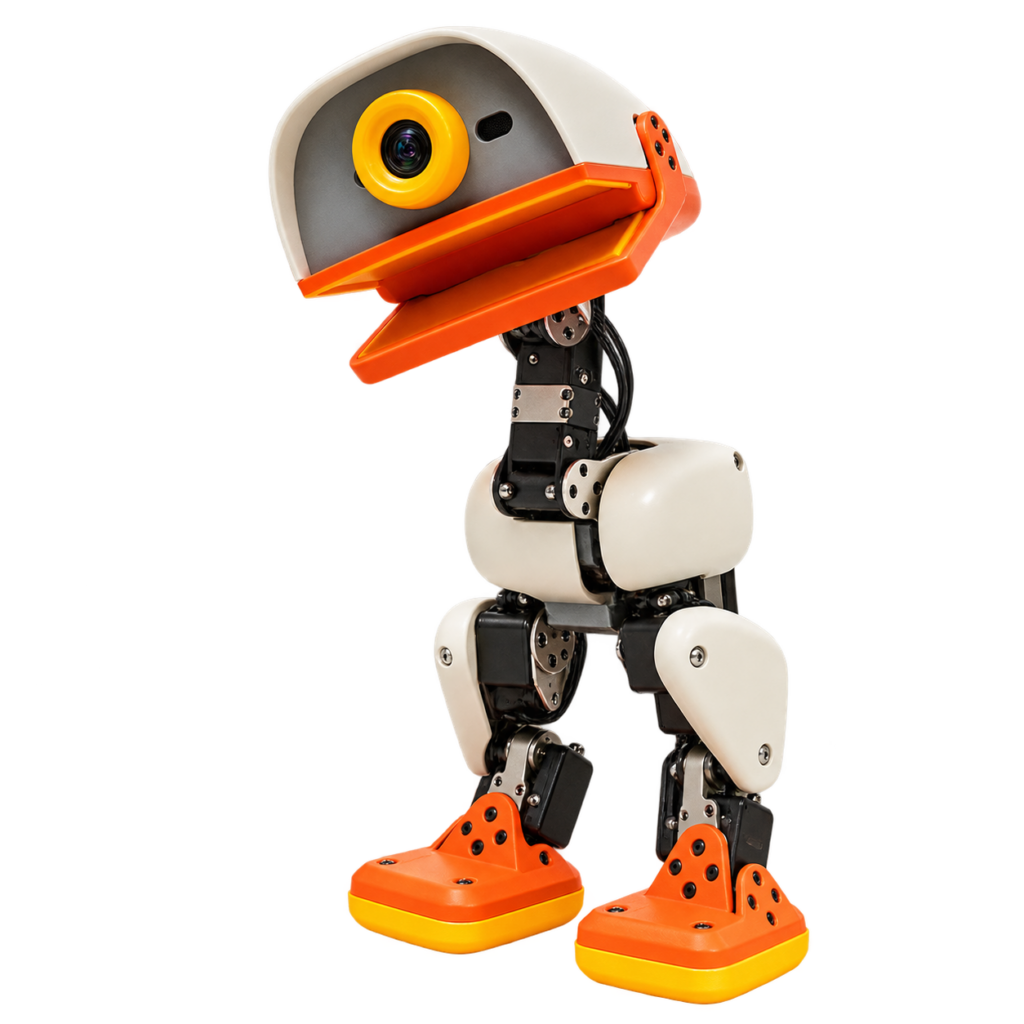
In Part 1 I picked the XGO-Duck. In Part 4 I admitted I was lost among too many duck projects. This part ends that. I made a decision, and I’m starting from zero.
Forget the shopping list from Parts 1, 2 and 3. It belonged to a different robot. Everything from here on is new.
This post is written so that anyone can follow it. You don’t need to know anything about electronics, programming or 3D printing. If you can follow a recipe, you can follow this. Each step says what you need, what to do, what it should look like, and what to do if it doesn’t.
A promise about honesty
This is a build log, not a brochure. I haven’t built this duck yet. Where something is confirmed, I name the source. Where it’s my guess, I say so. When something goes wrong in the next parts, I’ll write that down too.
What are we building?
A small walking robot duck, about 25 cm tall. It’s a copy of the Microduck from Pollen Robotics. It can:
- walk, sit, and kick a ball,
- see through a camera,
- measure distance with a small 8 × 8 distance sensor,
- feel which way it is tilted (that’s what an “IMU” does),
- hear through a microphone and make sounds through a speaker,
- be steered with a game controller.
It has 15 small motors (called servos). Each one is a joint: hips, knees, ankles, neck, and beak.
The plan in four sentences
- We 3D-print the body.
- We order the electronics and motors.
- We put it all together, plug in the cables and install the software.
- We calibrate it (teach it where its “straight” is) and take the first steps.
Which duck, and why
There are many Microduck copies on the internet. After a lot of reading I chose kissqy/Microduck-kissqy. These are my reasons:
| What I wanted | Why this one fits |
|---|---|
| It must really walk | The author shows videos of the real robot walking, and ships ready-made walking models. I haven’t seen a second person succeed yet. That is still unconfirmed. |
| Uses Pollen’s software | It is built on top of Pollen’s open software. |
| Has all the sensors | Camera, distance sensor, motion sensor (IMU), microphone and speaker are all on the parts list. |
| Looks like the original | The print set is based on the official Microduck shape. |
| I can build most of it myself | Yes. Everything is printed at home. |
A fair warning. The original Pollen robot uses different motors (Dynamixel XL330). This copy uses a cheaper motor (Feetech HD-1910). So the walking software is the author’s own retrained version, not Pollen’s. That is the biggest risk in this project, and I’ll tell you honestly if it doesn’t work.
A note on licenses. The author’s circuit boards, console and walking models are free for personal, non-commercial use only. I’m building this as a hobby, and so should you.
Words you will meet
Read this list once. You can come back to it any time.
| Word | What it means |
|---|---|
| 3D printer | A machine that builds plastic objects layer by layer. |
| Filament | The plastic “string” a 3D printer melts and uses. It comes on a spool. |
| PLA | A hard, easy plastic. Most of the duck is made of it. |
| TPU | A soft, rubbery plastic. We use it for the two feet, so the duck doesn’t slip. |
| STL file | A 3D model file. The printer’s software turns it into instructions. |
| Slicer | A free program that cuts the 3D model into layers (like slices of bread) for the printer. |
| Servo | A small motor that turns to an exact angle. It is the duck’s “muscle”. |
| ID | A number we give each servo so the duck knows which is which (like a house number). |
| Microcontroller board / Radxa ZERO 3W | A tiny computer. It is the duck’s brain. |
| HAT | A board that sits on top of the brain and adds features: sound, power and connectors. |
| IMU | A sensor that feels tilt and movement, like the balance organ in your ear. |
| HUB | A small board that splits the battery power and the servo signal to several cables. |
| Capacitor | A tiny “water tank” for electricity. It smooths out sudden power demands, so the brain doesn’t reset. |
| Battery (NP-F550) | The rechargeable power pack. It is a camera battery, easy to buy and swap. |
| Calibration | Teaching the robot where “straight” and “zero” are on each joint. |
| Wi-Fi 5 GHz | The fast Wi-Fi band. The game controller disturbs the other band (2.4 GHz). |
| Taobao | A big Chinese web shop. The duck’s circuit boards are sold there. Most Chinese sellers do not ship abroad, so you use a forwarding service. |
| AMP2.0 / EH2.5 | Two kinds of plug for the same board. They do not fit each other. For this duck you need AMP2.0. |
| Cura | A free slicer program. See “Slicer”. |
| Bowden tube | A thin tube that pushes the filament from the extruder (the little motor on the frame) to the nozzle. The Ender 3 V2 has one. |
| Retraction | A printer setting that pulls the filament back a little between moves, to stop thin strings. Soft TPU does not like it. |
| Xbox mode | A setting on a game controller that makes it behave like an Xbox controller, so more devices understand it. |
| Forwarding service | A company with a warehouse in China. You give the Chinese seller the warehouse address. The warehouse collects your packages and mails them to you. |
Safety first
These rules stay valid for the whole series.
- The 3D printer gets hot. The nozzle is about 200 °C and the bed about 60 °C. Never touch them while it is on. Don’t leave the printer unattended for hours, especially early on. Put it on a hard, flat surface away from curtains and paper.
- Batteries can start fires. Never short the contacts. Never charge on your bed or couch. Charge on a hard surface, in sight. If a battery swells, gets hot, or smells strange, stop using it.
- Plus and minus matter. Connecting power the wrong way can destroy the electronics in a second. We always check twice before connecting a battery.
- Disconnect before you build. Never plug or unplug cables while the battery is in.
- Small parts. Screws and bearings are tiny. Keep them away from small children and pets.
- Ventilation. Print in a room with fresh air.
- Children. Young builders should build together with an adult, especially for printing, soldering and batteries.
What you need
Tools
- A 3D printer. I use a Creality Ender 3 V2 (bed 220 × 220 mm). Any similar printer works if its bed is about this size.
- A computer (Windows or Mac) with Wi-Fi.
- A small set of Phillips screwdrivers (small sizes).
- A wire stripper and side cutters.
- A multimeter (a cheap one is fine) to check that wires are connected the right way.
- A microSD card reader and a 32 GB microSD card.
- A smartphone.
- Tape, a small box for screws, and good light.
You do not need to solder. The circuit boards come ready-made.
The parts, in short
The full list with exact links, quantities and versions is in my order list. Here is what the groups are:
| Group | What | Quantity |
|---|---|---|
| Motors | Feetech HD-1910-C001 servos | 15 |
| Brain | Radxa ZERO 3W, 2 GB, no eMMC, with header | 1 |
| Boards | HAT (ready-made) and IMU (ready-made, pre-flashed) | 1 each |
| Power board | HUB with 1000 µF capacitor | 1 |
| Camera | IMX219, 160° | 1 |
| Distance sensor | VL53L5CX (8 × 8) | 1 |
| Speaker | 3525 housing, 4 Ω, 3 W | 1 |
| Cables | AMP2.0 3-pin servo cables, 20 cm and 10 cm | 30 of each |
| Bearings | 6700 and ET2216 | 5 and 12 |
| Screws | M2 and M2.6 self-tapping, several lengths | 200 of each |
| Servo programmer | Feetech URT2 | 1 |
| Battery | Sony NP-F550 | 2 |
| Charger | Dual NP-F charger | 1 |
| Game controller | Bluetooth, in Xbox mode | 1 |
| Filament | PLA, about 1 kg, and TPU 95A, 250 g |
Where do I buy it?
Most parts are on AliExpress, and the table above links to them. Three parts are harder to find. Here is what I know, and what I do not know.
| Part | Where |
|---|---|
| HAT and IMU | The project page links to one Taobao listing (the shop name is not given): item.taobao.com/item.htm?id=1095121548583. Taobao only ships inside China, so you need a forwarding service. Ask the seller for the AMP2.0 version. |
| HUB | I found no buying link anywhere. The author’s pages do not say where to get it. So we ask first (step 6). You can also contact the author through the WeChat code on the project page. |
| Servos | I have not picked a seller yet. Search for “Feetech HD-1910-C001”. I will add the link when I have one. |
The boards only work if they are the author’s own open-source versions (HAT, IMU and HUB). Do not buy look-alikes.
Two important notes before you buy:
- Versions of the connectors. The HAT and IMU are sold in an older (EH2.5) and a newer (AMP2.0) connector version. The servos and cables here use AMP2.0 plugs. So you must order the AMP2.0 version of the HAT and IMU and confirm with the seller.
- The HUB and the battery contacts are not clearly for sale yet. The author’s pages say you must first check with him. So the first order step is a message, not a payment. See step 6.
Step by step: getting ready
We start with the parts that cost the most time, and the parts you can do right now: printing.
Step 1. Make a work area
You need: a table, a box, good light.
- Clear a table. Put down a mat or cardboard.
- Get a box with a lid for screws and small parts.
- Make a folder on your computer called
Microduck. Everything you download goes here.
It should look like: a tidy table and an empty folder.
Step 2. Download the print files
You need: a computer, the internet.
- Open my print files page: https://github.com/AchimPieters/microduck-build
- Click the green Code button, then Download ZIP.
- Put the ZIP in your
Microduckfolder. - Open (unzip) it. Double-click it on a Mac, or right-click and choose Extract All on Windows. No extra program is needed.
- Inside you will find:
- 36
.stlfiles (the 3D parts), - one
.3mffile (the author’s suggested layout on 5 plates).
- 36
It should look like: a folder with many .stl files in sub-folders, and one .3mf file.
Goes wrong? If the page says “404”, the files are not public yet. Try again later.
Downloaded files can be unsafe in general. This one is a plain archive of 3D models. Don’t run anything else from it. The models are the work of the original author; see the Sources.
Step 3. Install a slicer
The slicer turns the models into instructions for your printer. I use a free one.
- Download UltiMaker Cura (free) from the official website, or PrusaSlicer.
- Install it.
- When it asks which printer you have, choose Creality Ender 3 V2. If you use another printer, choose that one.
It should look like: a blank grey 3D bed on your screen.
Step 4. Choose the colors
You can use any color. Pollen’s duck is mostly white with colored accents. The author uses orange, black, white and purple. Just pick PLA in the colors you like.
My suggestion for a look close to the original: white for the body, one accent color for beak and feet. This is my own taste, nothing more.
Step 5. A small test print first
Before the real parts, we print one small part to see that everything works.
You need: PLA, a clean bed.
- Open Cura and click File, Open File(s). Pick one small part from your
Microduckfolder, for exampleneck-mount-left.stlfrom the folderprint-files/stl-models/support-parts. - Choose these settings. They come from the author’s own print project, so they are a good start:
Setting Value Layer height 0.2 mm Infill (inside fill) 15 % Walls 2 Nozzle 0.4 mm The usual PLA temperatures for most printers are about 200 °C nozzle and 60 °C bed. Check what is printed on your filament spool. This is general advice and not from the duck author.
- Click Slice, then Save to Disk and save to the SD card of your printer. Put the card in the printer.
- Start the print and watch the first layer. It should stick firmly to the bed, in neat straight lines.
- Wait until it is done. Let it cool before removing it.
It should look like: a neat part, no loose strings, no gaps.
Goes wrong?
| Problem | What to try |
|---|---|
| First layer does not stick | Clean the bed with soap and water. Level the bed again. Make the nozzle slightly closer. |
| Thin “strings” between parts | Lower the nozzle temperature by 5 °C. |
| The part has a gap or looks rough | Check that the filament moves freely and isn’t tangled. |
Step 6. Send the message to the seller (before you order)
The HUB and the battery contacts are the only parts for which I couldn’t find a clear buying link. I will not pay for anything until the seller answers.
How? Taobao sellers speak Chinese, so I use the Chinese text below. There are two ways. Either open the Taobao listing from “Where do I buy it?” (in section 4) and use its chat button (your browser can translate the page), or ask your forwarding service’s support to send the message for you. For the HUB you can also try the author’s WeChat code on the project page. This is general advice, I have not tried it yet.
Forwarding service, in short: you sign up, they give you an address of their warehouse in China, and you use that address as the delivery address at the seller. Later they send everything to your home. Compare a few services before you choose.
Chinese:
你好!我在制作 kissqy 的 FrankenDuck Microduck(飞特 HD1910 版)。请问:
1. 你的淘宝店是否出售 HUB(DXL_HUB_V2,带 1000µF 电容)?价格是多少?
2. 电池仓里 NP-F550 的电池触点/接线配件是否出售?具体型号是什么?
3. HAT、IMU 和 HUB 能否一起发到转运仓?
谢谢!
English:
Hello! I’m building your FrankenDuck Microduck (Feetech HD1910 version). Questions: 1) Does your Taobao shop sell the HUB (DXL_HUB_V2, with the 1000 µF capacitor)? 2) Do you sell the NP-F550 battery contacts / wiring parts for the battery holder? Which model? 3) Can the HAT, IMU and HUB ship together to a forwarding warehouse?
It should look like: a message sent, and then waiting for a reply. I’ll write the answer in the next part.
Step 7. Print the real parts
Now print the parts. The author arranged them on 5 plates (the .3mf file). The parts per plate are:
| Plate | Material | Parts |
|---|---|---|
| 1 | PLA | Left and right ankle arc, left and right foot, beak (jaw), lower back head shell, one small part |
| 2 | PLA | Left and right body shell, left and right upper leg, upper head shell with vents |
| 3 | PLA | Camera face part, two hip parts, two outer legs, two neck parts, IMU clip (power_support) |
| 4 | PLA | motor_support, trunk_base, two yaw2roll, one yaw_roll_motion |
| 5 | TPU | Two soles (sole_left, sole_right) |
(This table comes from reading the author’s 3MF file. The part names are as in the file.)
Also print one battery holder. Pick one of these two files from the folder print-files/stl-models/body-parts:
battery-holder_M2.5-screws_HUB-combo.stl: also holds the HUB board in place. This is my choice (if the seller sells the HUB).battery-holder_thick-clips.stl: the official style, with thicker clips.
Optional (skip for now): the roller-skate parts. Leave them out.
How to print each plate:
- Open Cura. Import the STL files that belong to the plate (one plate at a time). Every part is small enough for the 220 × 220 mm bed. The largest is about 92 × 123 mm.
- Arrange them on the bed so that none overlap.
- Use the settings from step 5.
- Slice, save and print.
- After each plate, put the finished parts in a labeled bag: “Plate 1”, “Plate 2”, and so on.
It should look like: five labeled bags of parts and a battery holder.
Goes wrong? If a part fails halfway, throw it away and print it again. Never glue a failed print together. It must be strong, because a robot falls over.
Step 8. The soft feet (TPU)
TPU is rubbery. It is harder to print, especially on a printer like the Ender 3 V2, where the filament is pushed through a long thin tube (a “Bowden tube”). Soft filament can bend and jam in it. Take your time.
- Resize the model first. The two sole files (
left-sole-TPU.stlandright-sole-TPU.stl) are saved in meters. In Cura, scale them up by 1000. After scaling each sole should be about 41 × 54 × 13 mm. If it looks tiny, the scaling is missing. (I measured this in the files.) - Print slowly. TPU needs a low speed. A common starting point is about 20 mm/s. This is general advice, not from the duck author. Check the settings on your TPU spool.
- Turn retraction off or very low. (Retraction is the setting where the printer pulls the filament back a bit; in Cura it is under “Travel”.) Otherwise the soft filament jams. This is also general advice.
- Print the two soles.
It should look like: two soft, bendable soles that fit the foot parts.
Goes wrong? If the filament jams or bunches up near the extruder, stop. Slow down more and try again. If it keeps failing, try a smaller test piece.
Step 9. Sort and label
- Make a list of all parts you printed.
- Put each group in a bag with a label.
- Write down any part that came out badly, so you can reprint it.
- Take a photo of everything laid out. You’ll want it later.
[PHOTO: all printed parts laid out on the table]
What we do NOT know yet
Honest list of the open questions. I’ll answer each one in later parts:
- Will the seller sell the HUB and battery contacts? Until then I can’t finish the power part.
- Does the walking model work with my build? The author says yes. Nobody else has confirmed.
- Does my game controller pair with the author’s control program (the “console”)? The author uses a GameSir “Nova 2”. I plan to buy the GameSir Nova 2 Lite in Xbox mode. If that fails, an Xbox controller is the safe fallback, because Pollen’s own documentation lists it.
- Does import go smoothly? Some forwarding services handle magnets or batteries differently. That is why I’m buying the batteries locally.
What comes next
| Part | What we do |
|---|---|
| Part 6 | The parts arrive. We unpack, check, and set the ID number of each servo. |
| Part 7 | We build the two legs. |
| Part 8 | We build the body, the battery holder, the HUB and the IMU. |
| Part 9 | We build the head and neck, and install the brain and HAT. |
| Part 10 | We install the software, connect to Wi-Fi, and calibrate. |
| Part 11 | The first steps. And what went wrong. |
Nothing in those parts is written until I’ve actually done it. If the duck falls over, you’ll read that too.
Checklist for this part
- ☐ Work area ready
- ☐ Print files downloaded and unpacked
- ☐ Slicer installed
- ☐ Test print done
- ☐ Message to the seller sent
- ☐ Plates 1 to 4 printed in PLA
- ☐ Soles printed in TPU
- ☐ Battery holder printed
- ☐ Parts sorted and photographed
Sources
- Build guide: https://kissqy.github.io/Microduck-kissqy/build/
- Project: https://github.com/kissqy/Microduck-kissqy
- Print files (my copy): https://github.com/AchimPieters/microduck-build
- Original print set: https://github.com/kissqy/Microduck-kissqy/tree/main/hardware/3d-print-frankenduck
- Pollen Robotics Microduck: https://github.com/pollen-robotics/microduck
- Assembly notes (5 GHz Wi-Fi, capacitor): https://github.com/kissqy/Microduck-kissqy/blob/main/docs/ASSEMBLY-NOTES.en.md
Conclusion: Part 6 Is Unboxing
Part 6 starts when the parts arrive: we unpack, check everything, and set the ID number of each servo.
Previous: Part 4: Too Many Ducks
A clean start. Happy hacking!
Related
 Software
ESP32 DHT Driver for ESP-IDF
A driver for DHT11, DHT22 (AM2301) and Si7021 temperature and humidity sensors on the ESP32, packaged as an ESP-IDF component with an example.
Read more
Software
ESP32 DHT Driver for ESP-IDF
A driver for DHT11, DHT22 (AM2301) and Si7021 temperature and humidity sensors on the ESP32, packaged as an ESP-IDF component with an example.
Read more
 Electronics
Building a Budget BD-X Droid, Part 2: The Hardware
Every part you need for the budget BD-X droid, what it does, and where to order it. One shopping list for about €426, with a checklist for when the boxes arrive.
Read more
Electronics
Building a Budget BD-X Droid, Part 2: The Hardware
Every part you need for the budget BD-X droid, what it does, and where to order it. One shopping list for about €426, with a checklist for when the boxes arrive.
Read more
 3D printing
Nest Protect Ceiling Mounting Ring
Sometimes the biggest challenges come from the smallest details. The Nest Protect (2nd Generation) is a beautiful piece of hardware, a combined smoke and CO alarm, that comes in two versions: battery powered and 220V wired.
Read more
3D printing
Nest Protect Ceiling Mounting Ring
Sometimes the biggest challenges come from the smallest details. The Nest Protect (2nd Generation) is a beautiful piece of hardware, a combined smoke and CO alarm, that comes in two versions: battery powered and 220V wired.
Read more
More projects
Keep building.
Electronics, 3D printing and CNC builds, documented from the first idea to the last screw.
All projects