
Electronics
Building a micro-Duck, Part 3: Printing the Parts
What to print, how many of each, how big every part is, and which settings the repository gives. With a test-first plan, a print order, an upper limit for the filament and a PDF to tick off.
- 10 min read
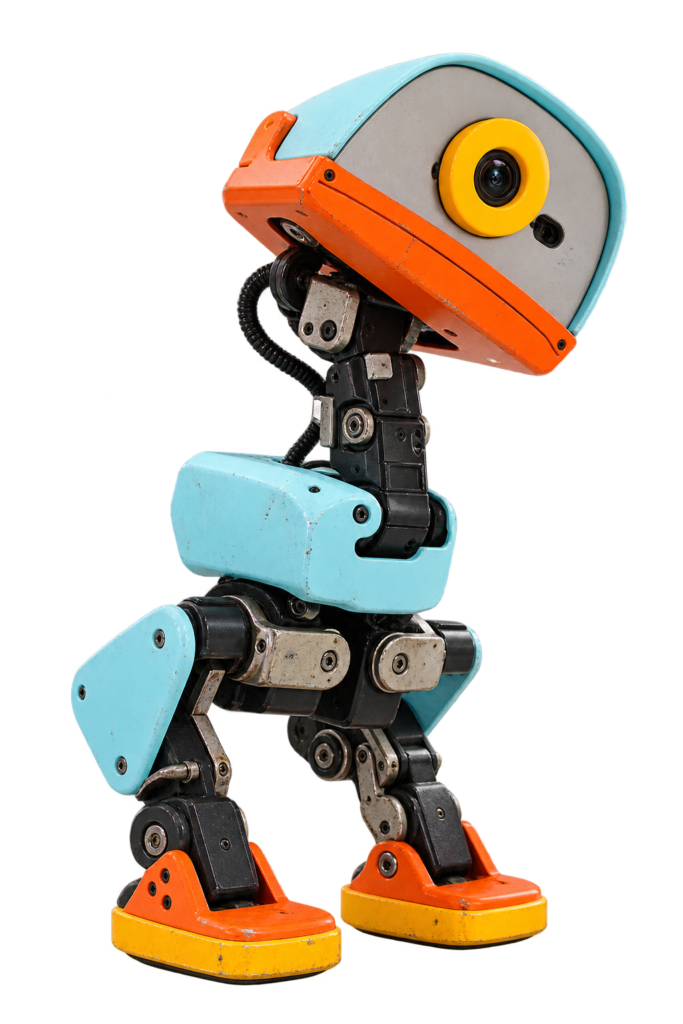
The parts are not ordered or printed yet, so this part is a plan for the printer, not a report from it. I went through every file in the structure folder, measured them, and set up the order I will print them in. When the printing is done I fill in the log at the end.
By the end of this part you know what to print, how many of each, what size every part is, which settings the repository gives, and which part to print first.
Where the settings come from
The repository gives only a few print settings: 4 walls, 13% gyroid infill and a print orientation. It says plainly that a complete, tested print profile is still to be documented. Everything else here is my own starting point, and I mark it as that.
I went through all 25 pages of the assembly guide for this part. It has photos and screw counts but no names of printed parts, so I can match only a few files to a step. Where I could, I say so in the tables. As in Part 2, I don’t publish STL files. They are in the repository, and I link to them. The licence is not finished yet, see Part 2.
Before You Press Print
Check the Bed Size
I measured all 27 files. In the orientation they are saved in, the biggest part is head_shell at 88 x 124 x 48 mm. Nothing is longer than 124.1 mm, so every part fits a printer with a 150 x 150 mm bed. You don’t have to split anything.
Check the Size in Your Slicer
Open a file and compare its size with the tables below. If the numbers are off by a factor of about 25, the slicer is reading the file in inches. Set it back to millimetres and leave the scale at 100%. The parts have bearing seats and servo pockets, so a scale change breaks the fit.
Left and Right
left_andright_are separate files, and they are not mirror copies of each other because of the cable routing. Print the left file for the left side. Do not mirror them in the slicer.2x_means print the file twice. The repository does not say whether those two copies are mirrored, so I check the first printed copy against the guide’s photos before I print the second one. The guide only says, on page 8, to check the left and right orientation and the mounting direction.- Files without a prefix default to one copy. The inventory says those are planning numbers that still need to be confirmed against the assembly.
Print Orientation
The repository has one reference picture: a U-shaped bracket, lying flat with the open channel facing up and the two end tabs on the build plate. The wrong way is standing it up, on its side, or upside down. The text warns that otherwise the holes may deform and the ends may break. It does not say which files this applies to. The guide’s page 16 shows a white U-shaped bracket for the neck servo (ID32) that looks like the one in the picture, so I treat every bracket-shaped part like this and check each file against the picture. Do not use auto-arrange. After slicing, compare the preview with the reference image in the repository.
Settings
| Setting | Start with | Where it comes from |
|---|---|---|
| Walls | 4 | Repository readme |
| Infill | 13%, gyroid | Repository readme |
| Orientation | As in the reference picture. No auto-arrange. | Repository readme |
| Scale | 100%, millimetres | My check, see above |
| Layer height | 0.2 mm | My starting point. The repository doesn’t give one. |
| Material, rigid parts | PLA | My starting point. The inventory says “confirm profile”. |
| Material, soft parts | TPU for the soles and the mouth | From the file names. The TPU hardness is not specified. |
| Supports | None to begin with | My starting point. The repository says nothing about supports. I check the preview of every part. |
| Brim | Off, unless a part lifts | My starting point |
TPU is the flexible plastic. The usual advice is to print it slowly. I test one sole before I print the second one, because the hardness is not given and the sole decides how well the foot grips.
What to Print
There are 27 files and 35 pieces: 24 rigid files and 3 soft ones (the 2 soles and the mouth parts). The size is the size in the saved orientation, as I measured it. Material is PLA unless it says TPU.
Legs and feet
| File | Size in mm | Material | Notes | |
|---|---|---|---|---|
2x_shank.stl | 2 | 58 x 7 x 20 | Rigid | The lower leg. |
2x_thigh_support.stl | 2 | 58 x 43.5 x 1.4 | Rigid | A flat plate, 1.4 mm thick. |
thigh_left_shell.stl | 1 | 61.2 x 25 x 47.5 | Rigid | Left only. Not a mirror copy. |
thigh_right_shell.stl | 1 | 61.2 x 25 x 47.5 | Rigid | Right only. Not a mirror copy. |
left_foot.stl | 1 | 54 x 26.4 x 39.7 | Rigid | Holds a bearing (assembly guide, page 11). Good test part. |
right_foot.stl | 1 | 54 x 26.4 x 39.7 | Rigid | Same page: the right foot uses other screws than the left. |
2x_ankle_axis.STL | 2 | 10 x 3 x 10 | Rigid | Small. Quick to print. |
2x_foot_bottom_tpu.stl | 2 | 54 x 7.2 x 40 | TPU | The soft sole. Check its direction when you fit it (guide, page 15). |
Hips
| File | Size in mm | Material | Notes | |
|---|---|---|---|---|
2x_hip_rol_output.stl | 2 | 34 x 32 x 19 | Rigid | |
2x_hip_rol_shell.stl | 2 | 1.4 x 40 x 23 | Rigid | A thin plate, 1.4 mm. |
2x_hip_yaw2rol.STL | 2 | 26.2 x 26 x 23 | Rigid | The inventory says 1 copy, the file name says 2. The guide has no part names, so I settle it by comparing the printed parts with its photos. |
hip_yaw_support.STL | 1 | 57 x 1 x 38 | Rigid | A thin plate, 1 mm. |
Body
| File | Size in mm | Material | Notes | |
|---|---|---|---|---|
body.stl | 1 | 59 x 9 x 78.5 | Rigid | |
body_left_shell.stl | 1 | 32 x 70.9 x 41.7 | Rigid | Left only. |
body_right_shell.stl | 1 | 33 x 70.9 x 41.7 | Rigid | Right only. |
battery.stl | 1 | 53.8 x 28 x 71.5 | Rigid | The battery bracket. The guide (page 23) screws the circuit board onto it with four M3 x 16 screws. |
Head, neck and mouth
| File | Size in mm | Material | Notes | |
|---|---|---|---|---|
head.stl | 1 | 88.3 x 118.9 x 16 | Rigid | |
head_shell.stl | 1 | 88 x 124.1 x 48.1 | Rigid | The biggest part, and the heaviest mesh. |
head_pitch.stl | 1 | 35 x 28.2 x 18 | Rigid | |
head_yaw.STL | 1 | 35.9 x 22.5 x 34 | Rigid | |
head_servo_support.stl | 1 | 68.5 x 60.5 x 18.8 | Rigid | |
2x_neck.stl | 2 | 20 x 2 x 10 | Rigid | Very small, 2 mm thick. |
eye.stl | 1 | 17.4 x 7.5 x 17.4 | Rigid | The inventory says 1. A duck has two eyes, and the guide shows no eyes at all, so the count stays open. |
eye_shell.stl | 1 | 30 x 11.6 x 29.8 | Rigid | Same open question as the eye. |
jaw.stl | 1 | 88 x 67.7 x 30.1 | Rigid | Moves with the mouth servo. |
mouth_up_tpu.stl | 1 | 84.3 x 27.2 x 2.4 | TPU | Upper mouth, soft. Probably one of the two soft pads taped into the beak (guide, page 21). |
mouth_buttom_tpu.stl | 1 | 80.6 x 29.1 x 7 | TPU | Lower mouth, soft. Taped in with double-sided tape. The “buttom” spelling is the real file name. |
Optional roller skates
I skip these for now. They need 4 extra screws and 8 extra bearings, which are already counted in Part 2.
| File | Size in mm | Material | Notes | |
|---|---|---|---|---|
2x_tire_support.STL | 2 | 77 x 21.5 x 37 | Not decided | |
4x_tire.STL | 4 | 8 x 30 x 30 | Not decided | The repository doesn’t say which material. |
4x_tire_axis.STL | 4 | 9.9 x 11 x 9.9 | Not decided |
How Much Filament?
Nobody has measured this yet: the repository says plainly that print time and filament use have not been measured. What I can give is an upper limit. From the 3D models I calculated the volume of every part. All rigid parts together are about 252 cm³ and the soft parts about 41 cm³ if every part were printed completely solid. With PLA at 1.24 g/cm³ that is at most about 310 g of PLA and 50 g of TPU. With 4 walls and 13% infill the real number is lower, probably well under that. This assumes one body per file, so a 2x_ file is counted twice. I fill in the real number in the log.
So this robot needs less than one spool, and the parts are small. The head shell has the most triangles, so that is the file my slicer will think about longest.
Print These Two First
The repository says to test a servo mount and a bearing seat before you print the full set. This is the plan:
- Print
left_foot. The assembly guide puts a 10 × 15 × 3 mm bearing in the foot (page 11).
Good result: the bearing presses in snugly, without cracking the part.
Bad result: the bearing is loose or the part cracks. Don’t print more. Check scale and orientation first. - Print one bracket-shaped part for a servo, for example the U-shaped neck bracket from page 16 of the guide, and put a Feetech 1910 servo in it. The guide has no part names, so I pick the exact file when the servos arrive and I can compare the photos with the parts.
Good result: the servo fits and the screw holes line up.
Bad result: the servo does not fit. Stop and report the file name in the repository’s issues. - Print one TPU sole and check that it fits the foot.
- If all three are fine: print the rest.
A Sensible Print Order
- The test parts from the section above.
- Legs and feet: the shanks, thigh supports, shells and the second foot.
- Hips, once I know the copy count of
2x_hip_yaw2rol. - Body with both shells.
- Head and neck. The head shell goes last of these, because it is the biggest print.
- The soft parts: the second sole and the two mouth parts.
- Use the downtime: while a part prints, label the finished ones and remove the stringing. Sort the screws by type.
I print each group in one go and keep each group in a labelled bag, so the parts for one leg don’t get mixed up with the other leg.
Download the Print List
To keep track while printing, I put the list from this part into a four page PDF with checkboxes you can tick off on paper.
- Every file, per group, with how many to print, its size and its material.
- The settings, and where each one comes from.
- The test-first plan, the print order and an empty log.
- It lists file names only. I don’t publish STL files. They are in the repository.
If It Didn’t Work
- The holes are too small or too big. Check the scale first. Then check the orientation against the reference picture. The repository says to validate one part before you reprint the set.
- A part snapped at the ends. The orientation is probably wrong. The repository warns that a flipped or standing part can break at the ends.
- The part lifts at the corners. Clean the bed, add a brim of 3 to 5 mm, and check the first layer.
- The TPU strings or jams. Slow down and dry the filament. If it still jams, ask in the repository’s issues.
- You don’t know if a part is left or right. The file name says it. Don’t mirror a
left_orright_file.
Printing Log (To Be Filled In)
I fill this in as I print. The numbers will be real, not copied from anywhere.
| Printer | |
| Nozzle | |
| PLA and brand | |
| TPU, brand and hardness | |
| Layer height | |
| Supports used | |
| Total print time |
| Group | Filament (g) | Print time | Notes |
|---|---|---|---|
| Test parts | |||
| Legs and feet | |||
| Hips | |||
| Body | |||
| Head, neck and mouth | |||
| Soft parts | |||
| Total |
If you print this robot and your numbers differ, tell me through the contact page.
Words Explained
- Slicer: the program that turns a 3D model into instructions for the printer.
- STL: a common file format for 3D models.
- Wall: one outer line of plastic around a part. More walls means a stronger part.
- Infill: the pattern inside a part. A low percentage is light and cheap.
- Gyroid: a wavy infill pattern that is strong in every direction.
- Brim: a thin flat ring around the first layer that helps a part stick.
- Supports: temporary structures under overhangs, removed after printing.
- TPU: a flexible printing plastic.
- Bounding box: the smallest box that fits around a part. That is how the sizes here are measured.
Conclusion: Time to Print
Next up: Part 4: Too many ducks (a step back to compare the other MicroDuck builds and the real cost before I order anything).
Previous: Part 2: The hardware
Small duck, big steps. Happy hacking!
Unofficial fan project
XGO-Duck is an open-source robot by Luwu Dynamics, based on Microduck and microduck_rl by Pollen Robotics. This site is not affiliated with Luwu Dynamics, Pollen Robotics, Rhoban or Arduino, and none of them endorse this series.
Related
 Software
RTOS Servo Library for ESP8266
A small library to turn a hobby servo to an angle on an ESP8266, with a 50 Hz PWM output and a default pin of GPIO13.
Read more
Software
RTOS Servo Library for ESP8266
A small library to turn a hobby servo to an angle on an ESP8266, with a 50 Hz PWM output and a default pin of GPIO13.
Read more
 3D printing
Nest Protect Ceiling Mounting Ring
Sometimes the biggest challenges come from the smallest details. The Nest Protect (2nd Generation) is a beautiful piece of hardware, a combined smoke and CO alarm, that comes in two versions: battery powered and 220V wired.
Read more
3D printing
Nest Protect Ceiling Mounting Ring
Sometimes the biggest challenges come from the smallest details. The Nest Protect (2nd Generation) is a beautiful piece of hardware, a combined smoke and CO alarm, that comes in two versions: battery powered and 220V wired.
Read more
 Software
ESP32 WS2811 LED Strip Driver
A driver for WS2811 RGBIC LED strips on the ESP32, using the RMT peripheral to drive a strip from one data line.
Read more
Software
ESP32 WS2811 LED Strip Driver
A driver for WS2811 RGBIC LED strips on the ESP32, using the RMT peripheral to drive a strip from one data line.
Read more
More projects
Keep building.
Electronics, 3D printing and CNC builds, documented from the first idea to the last screw.
All projects